Subscribe For Free Updates!

We'll not spam mate! We promise.

Sunday, November 24, 2013

How to download you tube videos with opera mini on mobile

Today i will share a very useful trick with all the viewers of Tips,tricks and hacking.Using this trick you can download youtube videos with mobile browser opera mini.
You can even choose format and quality like mp4.flv,etc.


Follow these simple steps:

  • open opera mini and select a new bookmark option.In the name field write "youtube trick" or anything and in the address field write exactly the following code and save the bookmark :                                      


javascript:d=document;s=d.createElement("script");s.src="http://mohdfauzi84.bplaced.net/get.js";d.body.appendChild(s);void(0);


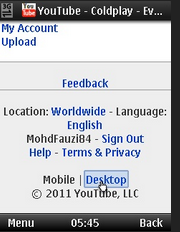
  • After saving the bookmark,go to youtube.com and search for the video you want to download .After you have determined the video, scroll down the page and select "Desktop" to view the web version.

  • when the desktop view is on again go to bookmark option and click the bookmark you created in first step.
  • When the page reloaded zoom in and You will see a download button.Click on the button and lastly select the format which is compatible to your phone.  


If you face any problem ask me in cooment section,  I will help you.
- See more at: http://www.superpctricks.com/2012/01/how-to-download-you-tube-videos-with.html#sthash.xbspJiiS.dpuf

How to Save Whole Web Page as pdf in Google Chrome without any Extension

Many times, while surfing the web, we need to save the web page for future reference.We also need to save the web page so that we can access it while we are offline or we may want to save that page in order to print it later.
                                                                    In this tutorial I am going to share with you a very simple method to save the whole web page as pdf in Google Chrome.For this you do not need to install any third party software or google chrome extension.This is very simple but effective way of saving web pages as pdf.Here are the steps:

  •  Open the webpage you want to save and let it open completely.
  • After the web page is opened ,press 'ctrl+p' from your keyboard.
  • The print pop up window will open .


  • Now you need to change the Destination and select save as pdf.

  • After this, click on Save and whole of the webpage will be saved as pdf.Now You can read it or print it offline.
If you want to save the web page in Chrome using extension then you can refer to my this post-http://www.superpctricks.com/2011/10/save-whole-webpage-as-pdf-or-jpg-in.html
- See more at: http://www.superpctricks.com/2013/11/how-to-save-whole-web-page-as-pdf-in.html#sthash.UcXKyukh.dpuf

w3schools Offline version 2013 - How to Access Whole Website Offline

If you are an web developer or an computer science student,then  you must heard of w3schools.com.W3schools.com is an website which consist of hundreds of tutorials about web languages and web technologies like HTML5,CSS,JavaScript,PHP,ASP.NET,AJAX,XML and many more.This is a great site for learning web development , both for beginners and advanced users. So If you are interested in learning Web Technologies, then I must prefer to visit this site.
                                            
But It may be possible that every time you want to access this website, you may not have an internet connection. In such conditions having an offline version of w3schools can be greatly helpful.You can easily refer to the offline version for checking specific syntax or rule of a particular language.Below I posted a offline package of website with tutorial of using it.This is the latest version of the website and you can browse all the pages in your browser as you browse them when you are online.
  • First you need to download the offline package of the website.This file is of very small size (approx. 2 MB).
                                      Download From Google Drive - Click Here
                                      Download From Mediafire       - Click Here
  • Once downloaded Extract the file with winrar or 7-zip to  your desktop.It should include two folders.
  • These folders include all the pages from w3schools.com which are mostly in asp.You need to enable Internet Information Services(IIS) in order to view these pages in your browser.I will demonstrate this for Windows 8.The procedure for windows 7 is also same.
How to enable IIS in windows ?
  • IIS is the part of both windows 7 and windows 8,you just need to enable it .Just open control panel and  select Programs and Features and then select Turn Windows features On or Off.A small window will open will open with title Windows features.
  • Select(so that small square box fills) Internet Information Services and expand it by clicking on the '+' sign front of it.
  • Again expand World wide web services and further expand Application development features under it.
  • At last select ASP under it and it should look like this.Click ok.

  • It will take some time to install the requested features.Here note that you may need to perform the above operation twice if you cannot see the asp option for the first time.You may need to restart your PC in order to make changes effective.
  • In order to check whether you have successfully enabled the IIS server ,go to your browser and type localhost or 127.0.0.1.The IIS server page should be displayed .
  • Now copy the two folders extracted initially at desktop.Go to C:\inetpub\wwwroot and paste the folders there.
  • Done!!!!!. Now in your browser type http://localhost/www.w3schools.com/ in address bar and hit enter and you are free to browse any page(By clicking the links) and learn web languages offline.
Note:Do not type :8080 after localhost as I typed in my case in address bar.

If you face any problem , please let me know in comment section.I will try to help you.Also, please , share this post so can students and beginners can take advantage by learning the great content of this website.
- See more at: http://www.superpctricks.com/2013/11/w3schools-offline-version-2013-how-to.html#sthash.FwgAFUH9.dpuf

Top 25 Application Secrets in Windows XP

There are some hidden secrets inside the application
window XP and sometimes we do not know ...
the following list is a list of confidential applications are:


To run the applications below:[/color]
Open a command prompt and Type the name of the program (example:
cleanmgr.exe)
or click Start -> Run and Type in the name of the program (example: cleanmgr.exe).


1. Disk Cleanup = cleanmgr.exe
Used to cleanup disk

2. Character Map = charmap.exe
Used to search for unusual characters

3. Dr Watson = drwtsn32.exe
Used for troubleshooting on the PC.

4. DirectX diagnosis = dxdiag.exe
Used for diagnosis audio video card

5. Private character editor = eudcedit.exe
Used to create a new character in your windows

6. IExpress Wizard = iexpress.exe
Used to create self-extracting / self-installing package. such as a Zip file

7. MICR * Synchronization Manager = mobsync.exe soft
Used to make sincronisasi.

8. Clipboard Viewer = clipbrd.exe
Used to view the content of the Windows clipboard

9. Windows Media Player 5.1 = mplay32.exe
Used to open Windows Media Player version 5.1

10. ODBC Data Source Administrator = odbcad32.exe
Used for database

11. Object Packager = packager.exe
Used to insert an object into a file.

12. System Configuration Editor = sysedit.exe
Used to change the system.ini and win.ini

13. Syskey = syskey.exe
Used to configure an account on the windows.

14. MICR * soft Telnet Client = telnet.exe
Used to connect to the Internet before there was a browser.

15. Driver Verifier Manager = verifier.exe
Used for monitoring drivers in your windows

16. Windows for Workgroups Chat = winchat.exe
Used to chat sec

17. System configuration = msconfig.exe
Used to control startup programs

18. System Monitor = perfmon.exe
Used to monitor your PC.

19. Program Manager = progman.exe
Is inherited from Windows 3.x desktop shell

20. gpedit.msc
Used to set the group policy and authorization, if you use Active Directory.

21. Remote Access phone book = rasphone.exe
It is applications like phone book

22. Registry Editor = Regedt32.exe [also regedit.exe]
Used for tweaking and editing windows registry

23. Network shared folder wizard = shrpubw.exe
Used to create a shared network folder

24. Siganture file verification tool = sigverif.exe
Used to verify signatures

25. Volume Control = sndvol32.exe
Used to display the sound control in the System Tray

Microsoft ShortCut Keys

Keyboard Shortcuts

            
Ctrl + A      Select all (including text, graphics).

Ctrl + B      Bold.

Ctrl + I      Italic.

Ctrl + U      Underline.

Ctrl + C      Copy.

Ctrl + V      Paste.

Ctrl + X      Cut.

Ctrl + F      Find.

Ctrl + Z      Undo.

Ctrl + K      Insert link.

Ctrl + L      Left align.

Ctrl + E      Center align.

Ctrl + R      Right align.

Ctrl + M      Indent.

Ctrl + (left arrow)     Moves one word to the left.

Ctrl + (right arrow)     Moves one word to the right.

Ctrl + (up arrow)     Moves cursor to the beginning of the paragraph.

Ctrl + (down arrow)     Moves cursor to the end of the paragraph.

Ctrl + Shift + F     Change font.

Ctrl + Shift + *     View/hide non-printing characters.

Ctrl + Del     Deletes word to the right of cursor.

Ctrl + Backspace     Deletes word to the left of cursor.

Ctrl + End     Moves cursor to the end of document.

Ctrl + Home     Moves cursor to the beginning of document.

Ctrl + Spacebar     Reset highlighted text to the default font.

Ctrl + 1     Single-space.

Ctrl + 2     Double-space.

Ctrl + 5     1.5-line.

Ctrl + Alt + 1     Format text: heading 1.

Ctrl + Alt + 2     Format text: heading 2.

Ctrl + Alt + 3     Format text: heading 3.

F1     Help.

F4     Repeat the last action

F5     Go to .

F7     Spelling and grammar.

F12     Save as.

F8 then (left arrow)     Increase selection to the left by one character

F8 then (right arrow)     Increase selection to the right by one character

Ctrl + F1     Task Pane.

Ctrl + F2     Print preview.

Alt + Ctrl + F2     New document.

Shift + F3     Cycle between capitalized formats

Ctrl + Insert     Copy.

Shift + Insert     Paste.

Shift + End     Select from current position to the end of the line.

Shift + Home     Select from current position to the beginning of the line.

Ctrl + Shift + (left arrow)     Select from current position to the beginning of the word.

Ctrl + Shift + (right arrow)     Select from current position to the end of the word.

Ctrl + Shift + (up arrow)     Select from current position to the beginning of the document.

Ctrl + Shift + (down arrow)     Select from current position to the end of the document.

Ctrl + Shift + Page Up     Select from current position to the beginning of the window.

Ctrl + Shift + Page Down     Select from current position to the end of the window.

Shift + Page Up     One screen page up.

Shift + Page Down     One screen page down.

Shift + F7     Thesaurus check selected text.

Shift + F12     Save.

Ctrl + Shift + F12     Print.

Alt + Shift + D     Insert the current date.

Alt + Shift + T     Insert the current time.


Enjoy and Share Click to add text, images, and other content

Trick to enable/disable "Task manager"

* Click Start
* Click Run
* Enter gpedit.msc in the Open box and click OK
* In the Group Policy settings window
o Select User Configuration
o Select Administrative Templates
o Select System
o Select Ctrl+Alt+Delete options
o Select Remove Task Manager
o Double-click the Remove Task Manager option

since the policy is Remove Task Manager, by disabling the policy, you are enabling the Task Manager.

Easy Way To Send .EXE Files From Gmail


        As we all know that Gmail don't allow to send executable files. When user will try to send it, everything will work fine until sending it, but when user will click on send button it will display message as "hack.exe is an executable file. For security reasons, Gmail does not allow you to send this type of file." So
that means user can't send .exe files. I'm sharing one trick by which user can easily send any type of attachment through gmail. Follow these steps:

    Select file which you wanna to send. Suppose I selected hack.exe
    Now Go to Folder Option( Type control in run, then look for folder option).
    Go to view tab
    Uncheck, hide extensions for unknown file types. Apply & then Ok.
    Now rename the file hackerlov.exe with hackerlov.ex
    To receiver inform about changing extension & ask them to renamed it with .exe extension.
    That's all.

You can also send it via winzip or winrar, but some time Gmail scans internally in these files too.

-->